Managing a remote team across multiple time zones feels like solving a puzzle where the pieces keep moving. You need one person in Sydney, another in Berlin, and a third in San Francisco all on the same call. But which tool actually helps you coordinate these meetings without the endless back-and-forth emails?
Calendly automates meeting bookings with built-in timezone detection, perfect for external scheduling and one-on-one appointments. World Time Buddy visualizes multiple time zones simultaneously, making it ideal for finding overlap windows and planning team meetings. Most remote managers need both tools serving different purposes in their coordination workflow rather than choosing one over the other.
What Calendly Actually Does for Distributed Teams
Calendly removes the scheduling tennis match from your inbox. You set your availability, share a link, and people book time slots that work for both of you.
The tool automatically detects each person’s timezone and displays your available slots in their local time. No mental math required. No “Is that 3pm your time or my time?” confusion.
For remote team coordinators, this means external stakeholders, new hires, and cross-functional partners can book time without you manually checking timezone converters. The system handles daylight saving time transitions automatically, which saves you from those embarrassing “I thought we were meeting now” moments.
Calendly integrates with Google Calendar, Outlook, and other calendar systems. When someone books a slot, it appears on your calendar with the correct timezone information for both parties. The confirmation email includes timezone details and calendar invites that adjust to each recipient’s location.
But here’s what Calendly doesn’t do well. It doesn’t show you a visual representation of multiple team members’ working hours simultaneously. You can’t easily see that your London developer overlaps with your Tokyo designer for only two hours each day.
How World Time Buddy Solves a Different Problem
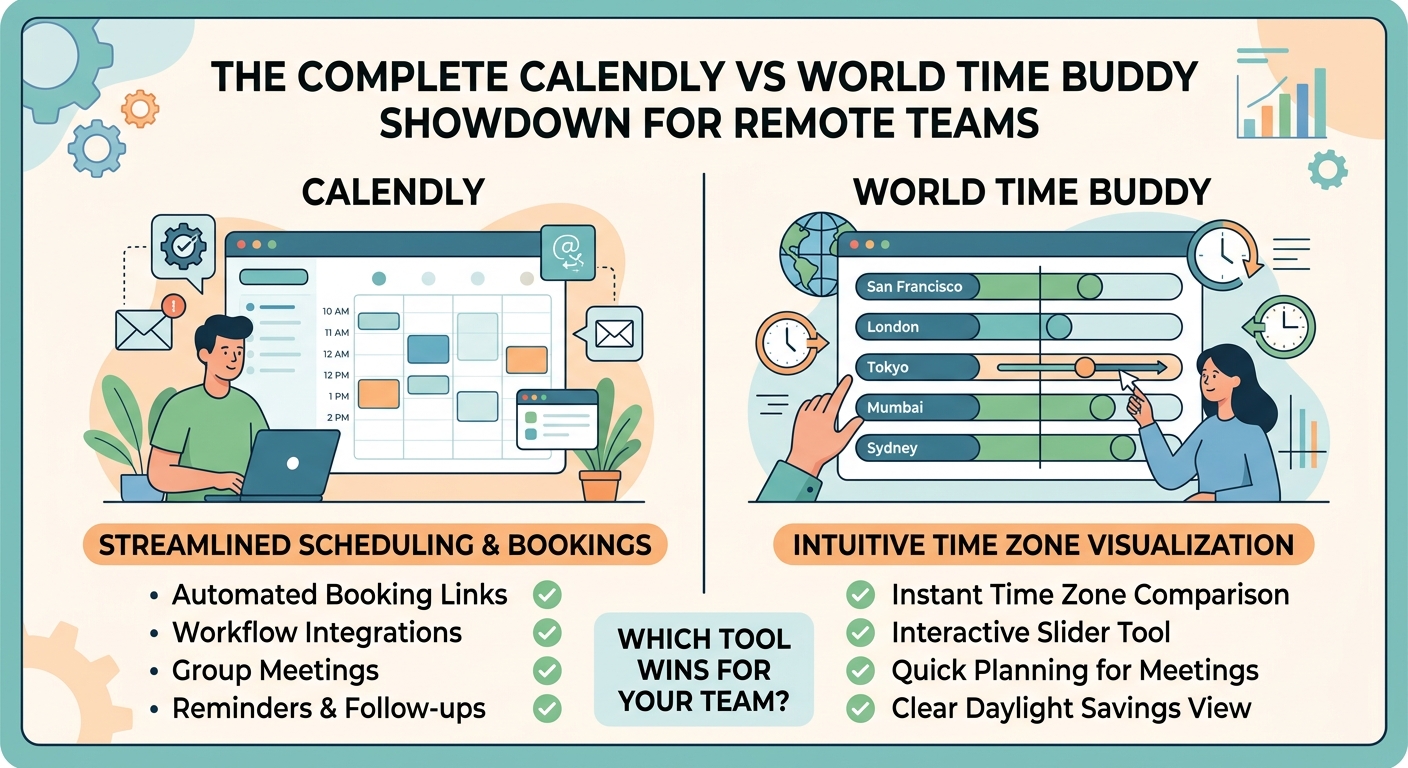
World Time Buddy gives you a grid view of multiple time zones at once. You can see four, six, or even ten timezones stacked vertically with hours running horizontally.
This visual layout makes finding overlap windows obvious. You instantly spot that 2pm EST equals 7pm London equals 6am Sydney the next day. The color coding shows working hours versus sleep hours for each location.
Remote team managers use World Time Buddy when planning recurring team meetings. You need to find a time that doesn’t force anyone to join at 2am or during their dinner hour. The grid makes these constraints visible immediately.
The tool also helps when coordinating project launches, deadline communications, or support handoffs between regions. You can see exactly when your European team finishes their day and your American team starts theirs.
World Time Buddy doesn’t send calendar invites. It doesn’t integrate with your scheduling system. It won’t automatically book meetings or send reminders. It’s purely a visualization and planning tool.
When to Use Each Tool in Your Workflow
Your choice between these tools depends on the specific coordination challenge you’re facing right now.
Use Calendly when:
- Scheduling one-on-one meetings with people outside your core team
- Setting up interviews, client calls, or consultant sessions
- Creating office hours where team members can book time with you
- Onboarding new hires who need to schedule orientation sessions
- Letting customers or partners book support calls without email chains
Use World Time Buddy when:
- Planning recurring team meetings across multiple regions
- Finding the best time slot for an all-hands meeting
- Coordinating project kickoffs with distributed stakeholders
- Checking if a proposed meeting time works across all locations
- Training new managers on timezone awareness and overlap windows
Many remote team coordinators keep both tools bookmarked. World Time Buddy helps find the right meeting time. Calendly helps people actually book that time without manual coordination.
The Real Comparison: Features That Matter
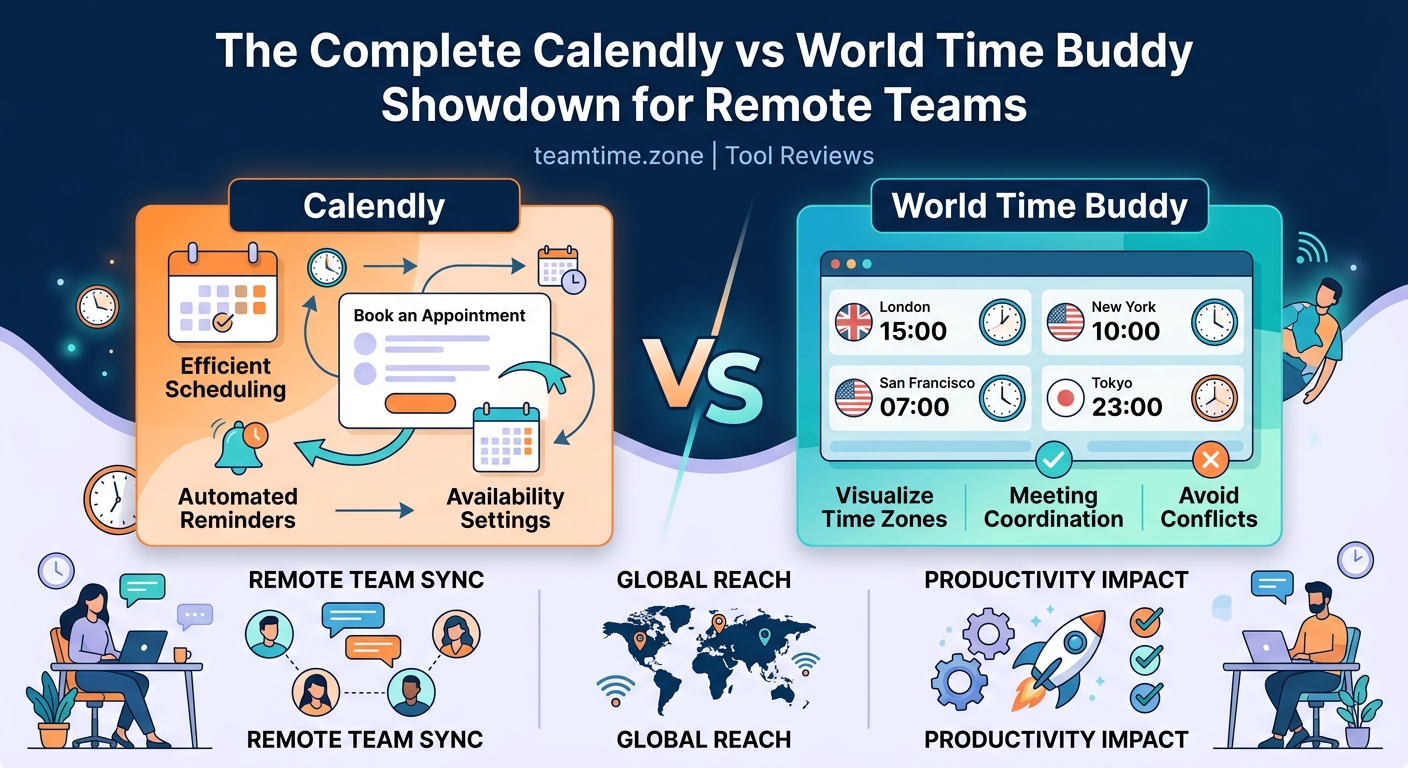
Let’s break down how these tools stack up on the features remote teams actually need.
| Feature | Calendly | World Time Buddy |
|---|---|---|
| Timezone auto-detection | Yes, automatic | Manual selection |
| Visual timezone overlap | No | Yes, grid view |
| Calendar integration | Google, Outlook, iCloud | None |
| Automated booking | Yes | No |
| Multiple timezone display | One at a time | Unlimited |
| Team scheduling | Paid plans only | Free for basic use |
| Meeting reminders | Yes | No |
| Daylight saving handling | Automatic | Automatic |
| Mobile app | Yes | Limited |
| Price for basic features | Free tier available | Free for core features |
The table reveals something important. These tools don’t really compete. They complement each other in a well-organized remote team’s toolkit.
Setting Up a Practical Scheduling System
Here’s how to combine both tools into a workflow that actually reduces coordination friction:
- Use World Time Buddy to identify your team’s core overlap hours across all locations.
- Document these overlap windows in your team handbook or wiki.
- Set up Calendly availability blocks that respect these overlap hours for team meetings.
- Create separate Calendly event types for external meetings with more flexible hours.
- Share World Time Buddy links in meeting invites so attendees can see all relevant timezones.
- Train team members to check World Time Buddy before proposing new recurring meetings.
This system means you’re not constantly doing timezone math in your head. The tools handle the complexity while you focus on actual coordination decisions.
The biggest mistake remote managers make is treating timezone coordination as a one-time setup task. Your team grows, people relocate, and daylight saving time shifts everything twice a year. Build timezone awareness into your regular workflow instead of solving it once and forgetting about it.
Common Mistakes That Waste Everyone’s Time
Remote team coordinators often stumble into these timezone coordination traps:
Assuming everyone knows their overlap hours. Team members in different locations often don’t realize how limited their shared working time actually is. Make overlap windows explicit and visible.
Using local time in written communication. Saying “Let’s meet at 3pm” without specifying a timezone creates confusion. Always include timezone abbreviations or use UTC as a reference point.
Ignoring daylight saving time transitions. Not all countries observe DST, and those that do change on different dates. Your perfectly-timed meeting suddenly shifts an hour twice a year unless you plan for it.
Overcomplicating the scheduling process. Some teams try to rotate meeting times to be “fair” to all locations, but this often creates more confusion than it solves. Consistency usually beats rotation for most recurring meetings.
Forgetting to update Calendly availability. Your working hours change, you travel, or you take time off, but your Calendly link still shows old availability. Regular audits prevent double-bookings and timezone mishaps.
Pricing Realities for Remote Teams
Calendly offers a free tier that works for individual contributors but limits team features. The paid plans start around $10 per user monthly and unlock round-robin scheduling, team pages, and more sophisticated availability rules.
For a remote team of 10 people, you’re looking at $100+ monthly if everyone needs full Calendly access. Many teams solve this by giving paid accounts only to managers and people-facing roles while others use the free tier.
World Time Buddy keeps its core features free for personal use. The pro version costs about $10 annually (not monthly) per user and adds features like saving favorite timezone combinations and removing ads.
The cost difference is substantial. World Time Buddy’s pricing makes it accessible for entire teams without budget approval. Calendly requires more careful consideration of who actually needs paid features.
Most remote teams end up spending money on Calendly for external-facing roles and keeping World Time Buddy free for internal planning. This hybrid approach balances functionality with budget constraints.
Integration Strategies That Actually Work
Neither tool replaces your calendar system. They augment it. Understanding how they fit into your existing workflow prevents tool sprawl and confusion.
Calendly connects directly to your calendar and creates events automatically. This tight integration means you don’t need to manually transfer bookings or worry about double-bookings. The tool checks your existing calendar before showing availability to others.
World Time Buddy doesn’t integrate with anything, which is both its weakness and its strength. You can’t automatically sync it with your calendar, but you also don’t need to grant it access to your data. It’s a simple reference tool that sits alongside your other systems.
Some teams create custom Slack commands or bookmarks that open World Time Buddy with their team’s specific timezone combination pre-loaded. This saves everyone from manually adding the same six timezones every time they need to check overlap.
For teams using project management tools like Asana or ClickUp, embedding World Time Buddy links in project descriptions helps distributed contributors understand timing expectations without leaving their workflow.
Advanced Coordination Techniques
Once you’ve mastered basic timezone scheduling, these techniques help optimize distributed team coordination further.
Create timezone-aware meeting templates. Instead of scheduling each meeting from scratch, build templates for common meeting types that already account for your team’s distribution. A sprint planning template might always happen during your 2-hour overlap window, while a design review template allows more flexibility.
Use asynchronous alternatives when possible. Not every coordination moment requires a live meeting. Building an async-first communication culture reduces the pressure on those limited overlap hours.
Implement a meeting rotation policy thoughtfully. If you do rotate meeting times to share the burden of off-hours meetings, establish clear rotation rules that everyone understands and can plan around.
Document decisions outside of meetings. When you do coordinate synchronously, make sure the outcomes are captured for team members who couldn’t attend. Proper async documentation extends the value of each meeting beyond the live attendees.
Respect the limited overlap. Your team might only have three hours of shared working time per day. Protect those hours for collaboration that truly benefits from real-time interaction rather than filling them with status updates that could happen asynchronously.
The Hidden Cost of Poor Timezone Coordination
Bad timezone management doesn’t just create scheduling headaches. It erodes team morale and productivity in ways that don’t show up in your calendar.
Team members in less-favored timezones start feeling like second-class citizens. They’re always joining meetings at inconvenient hours or missing important discussions entirely. This creates information asymmetry where some people are always in the loop while others play catch-up.
Projects slow down because handoffs between regions don’t happen smoothly. The New York team finishes their day and hands something to the London team, but unclear timing means work sits idle for hours.
Managers burn out from trying to accommodate everyone. You end up with a 12-hour workday because you’re trying to overlap with both your early and late timezone team members.
The right tools don’t solve these problems by themselves, but they make the problems visible and manageable. World Time Buddy shows you exactly how limited your overlap is, which helps you make realistic decisions about meeting frequency. Calendly removes the coordination tax from scheduling, freeing up mental energy for actual work.
Alternative Approaches Worth Considering
Calendly and World Time Buddy aren’t your only options. Understanding the broader landscape helps you make informed decisions.
Google Calendar includes basic timezone conversion and you can display multiple timezones in the sidebar. For small teams already living in Google Workspace, this might be sufficient without adding another tool.
Every Time Zone offers a visual layout similar to World Time Buddy but with a different interface. Some people find it more intuitive for spotting overlap windows.
Doodle handles group scheduling through polls where everyone marks their availability. This works when you need to find a time that works for many people but don’t want to give everyone direct calendar access.
The key question is whether these alternatives actually solve your specific coordination challenge better than the tools you already use. Tool proliferation creates its own problems. Adding a new scheduling tool should clearly reduce friction, not just shift it around.
Making Your Choice Based on Team Size
Your team’s size and structure significantly impact which tool delivers the most value.
Small teams (2-10 people): World Time Buddy’s free tier probably covers all your internal coordination needs. Invest in Calendly only for the person who schedules the most external meetings.
Medium teams (10-50 people): You’ll likely need Calendly paid plans for managers and client-facing roles. World Time Buddy remains useful for the entire team at minimal cost.
Large teams (50+ people): Consider whether you need a more comprehensive scheduling solution that includes resource management and team analytics. Calendly’s enterprise features might justify the investment, or you might need something more robust entirely.
Distributed teams with no overlap: If your team spans so many timezones that you have zero shared working hours, focus more on async coordination methods and use scheduling tools primarily for the rare occasions when synchronous time is truly necessary.
Building Timezone Awareness Into Your Culture
Tools help, but culture determines whether your distributed team actually coordinates effectively. The best scheduling software in the world can’t fix a team that doesn’t respect timezone boundaries.
Start by making timezones visible everywhere. Include timezone information in email signatures, Slack profiles, and team directories. When someone says “Good morning” in a channel, others should immediately know what time of day it is for that person.
Establish norms around response time expectations. If your team spans 12 time zones, expecting instant responses to messages creates stress and burnout. Clear response time expectations help everyone work at a sustainable pace.
Celebrate the benefits of timezone distribution instead of treating it as a problem to overcome. Your team can provide customer support across more hours, respond to incidents faster, and get perspectives from people experiencing different parts of the day.
Train new team members on timezone etiquette during onboarding. Don’t assume they’ll figure it out. Explicit training on when to schedule meetings, how to communicate across time gaps, and which tools to use prevents months of coordination friction.
Your Next Steps for Better Coordination
You don’t need to overhaul your entire scheduling system tomorrow. Start with one specific pain point and address it with the right tool.
If your biggest problem is external meeting coordination eating up your time with email tennis, start with Calendly. Set up your availability, create a few event types, and share the links with the next five people who try to schedule something with you.
If your challenge is finding meeting times that work across your distributed team, bookmark World Time Buddy and use it the next time someone proposes a recurring meeting. Show the team the visual overlap and make timezone-aware decisions together.
If you’re already using both tools but still struggling with coordination, the problem might not be the tools themselves. Look at your meeting culture, your async practices, and whether you’re trying to coordinate synchronously when async would work better.
When Scheduling Tools Aren’t Enough
Sometimes the coordination challenge runs deeper than what any scheduling tool can solve. You might need to rethink your entire approach to remote collaboration.
Understanding when to go synchronous versus async helps you use your limited overlap time wisely. Not every decision needs a meeting, and not every meeting needs everyone.
Cutting your standing meetings in half might do more for your team’s coordination than any scheduling tool. Fewer meetings means less timezone juggling and more focused work time.
For teams spanning extreme timezone differences, the 4-hour overlap method provides a framework for maximizing the limited shared time you have.
The Tools That Work Together
The calendly vs world time buddy comparison misses the point. These tools solve different problems in your coordination workflow.
World Time Buddy helps you see the timezone landscape and find the right meeting time. Calendly helps people book that time without the coordination overhead. Together, they remove friction from distributed team scheduling.
Most successful remote teams use World Time Buddy for internal planning and Calendly for external coordination. This division of labor plays to each tool’s strengths without creating redundancy or confusion.
Your specific needs might differ. A sales team scheduling lots of client calls will lean heavily on Calendly. A product team coordinating feature launches across regions will reference World Time Buddy constantly.
The right answer for your team depends on where your coordination friction actually lives. Identify your specific pain points, match them to the right tool, and implement thoughtfully rather than adopting every scheduling solution that crosses your radar.
Start with the tool that addresses your biggest current headache. Master it. Then evaluate whether you need the other one. Most remote team coordinators eventually use both, but in very different ways and for very different purposes.